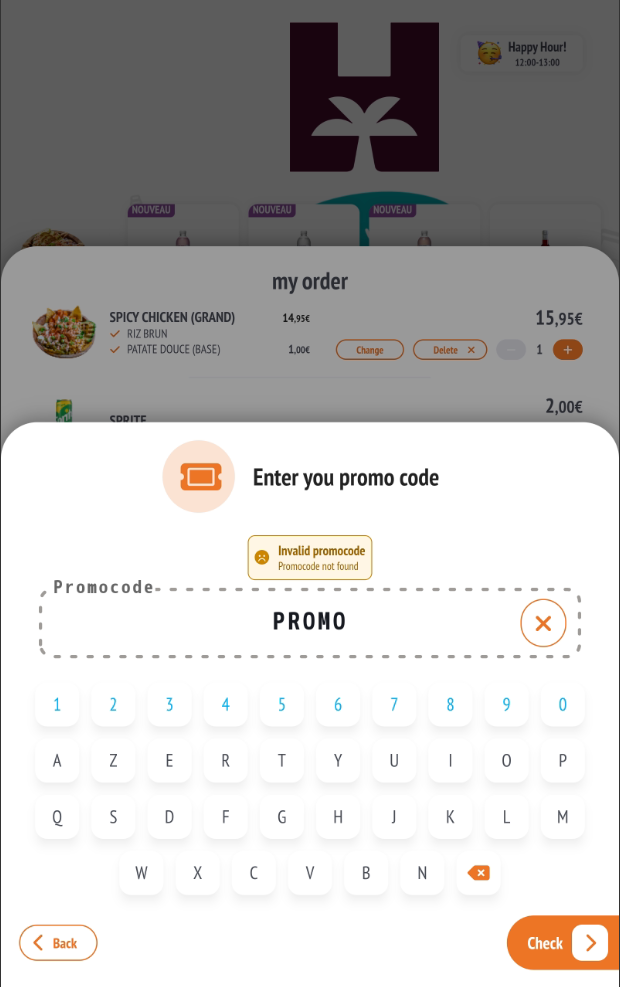
Promotional codes allow a discount (€, %, or product benefit) to be applied to an order, both:
- on the customer side via the SmartKiosk
- on the operator side via the RESTOMAX POS
SmartKiosk (Customer Side)
Objective
The RESTOMAX SmartKiosk allows customers to enter and apply a promotional code directly to their cart, with behavior equivalent to the RESTOMAX POS.
Customer Journey on SmartKiosk
1️⃣ Access to the Cart
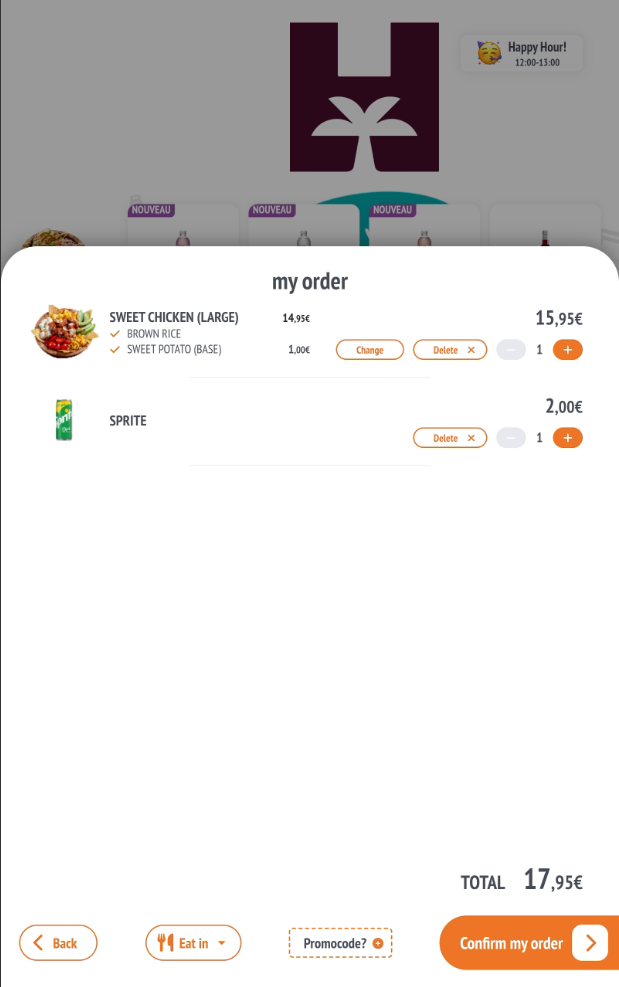
The customer builds their order and then accesses the “My order” screen.
- Product details are displayed
- The total amount is visible
- The “Promocode?” button is available at the bottom of the screen
2️⃣ Entering the Promotional Code
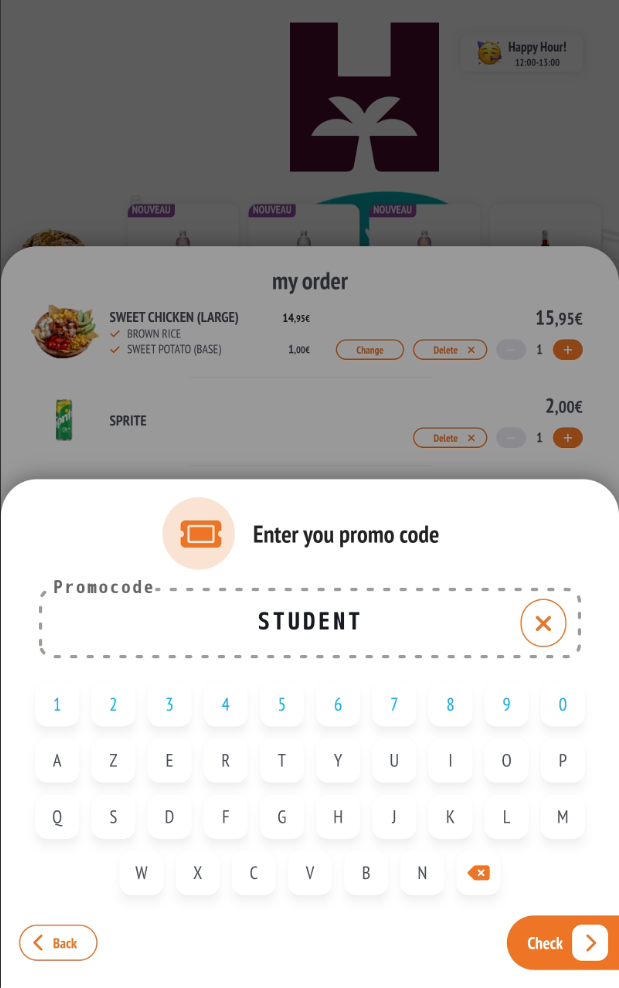
By clicking “Promocode?”, a window opens allowing the customer to enter their code.
- Field: Promocode
- On-screen keyboard
- Check button to validate the code
3️⃣ Code Validation
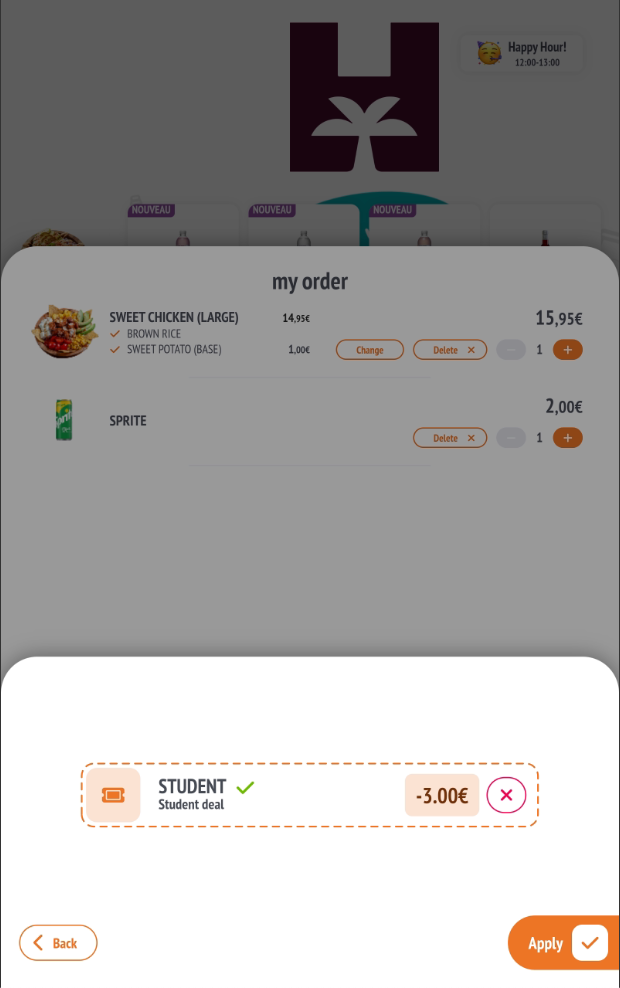
If the code is valid, the SmartKiosk displays:
- the code name
- a description
- the discount value
- a validation indicator ✅
The customer can:
- Apply → apply the promotion
- ❌ → cancel the code
4️⃣ Application to the Cart
Once the code is applied:
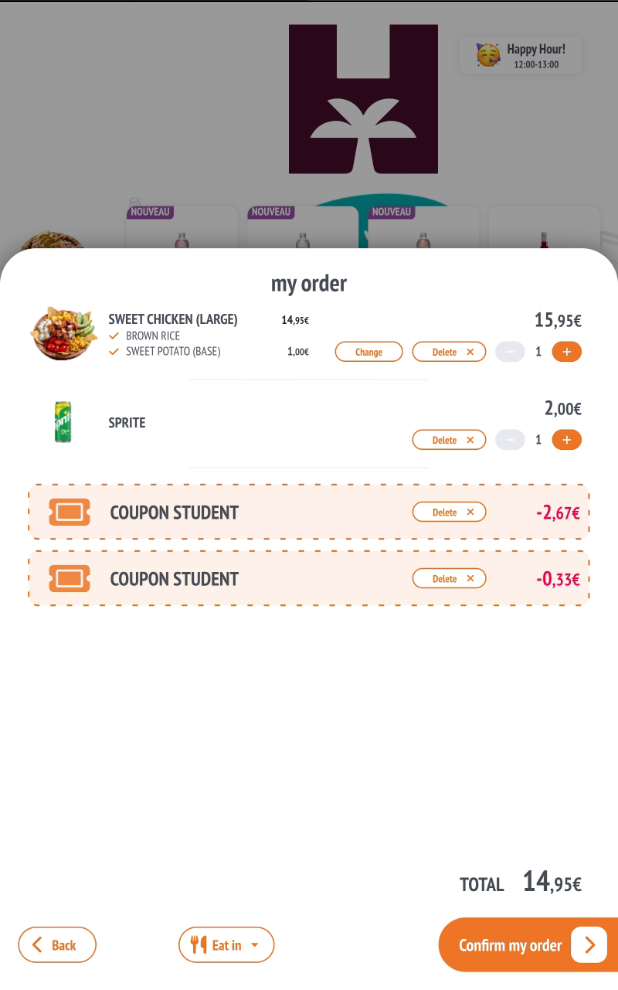
- the discount appears in the cart as “COUPON” lines
- the total amount is automatically recalculated
👉 As with the POS, the discount may appear on multiple lines, especially when distributed by VAT rate.
Prerequisites for Using a Promotional Code
For a promotional code to be used on the SmartKiosk and/or the RESTOMAX POS, the following conditions must be met.
✅ Active Code
The promotional code must be enabled in its configuration.
An inactive code cannot be used, regardless of the channel.
🏬 Participating Stores
The code must be associated with at least one participating store.
- If no store is selected, the code is invalid
- A code can be limited to one or multiple points of sale
🧾 Compatible Reward Type
The defined reward type must match the order:
- Cart: discount on the total order amount
- Products: discount or free product if the product is present
- Hierarchy: discount on a product category
If the conditions are not met, the code is not applied.
📲 Authorized Channels
The promotional code must be authorized on the channel used:
- SmartKiosk
- Click & Collect
- POS / RESTOMAX POS (depending on availability)
A code that is not authorized on a channel will neither be proposed nor accepted.
⏱️ Validity Period
If a time limitation is enabled, the code must be used:
- between the start and end dates
- and, if configured, only on certain days of the week
- and/or within specific time slots
Outside these periods, the code is rejected.
💶 Minimum Order Value
If a minimum order value is defined, the cart total must be greater than or equal to this amount for the code to apply.
🔁 Usage Limitation
Depending on the configuration:
- unlimited usage
- or limited usage (global or per customer)
Once the limit is reached, the code becomes invalid.
⚙️ Additional Rules
Depending on the settings:
- fees (delivery, service, etc.) may be excluded from the discount
- combination with other discounts may be restricted
ℹ️ Behavior When Conditions Are Not Met
If a prerequisite is not met:
- the code is rejected on the SmartKiosk
- no impact is applied to the receipt