Overview of the main improvements in version 3.2.20 of the RESTOMAX POS system:
RESTOMAX version 3.2.20 introduces a series of major enhancements aimed at improving system performance, production resilience, and user experience across the entire ecosystem (POS, kiosk, kitchen, and payments).
This update particularly focuses on:
- Redesign of kitchen screens (KDS) and improved offline capabilities
- Evolution of payment methods (App2App, split payments, loyalty, cashless)
- Optimization of sales workflows and stock management
- Enhanced Smartkiosk experience (connected scale, alerts, maintenance)
✨ Key Improvements
- Refactoring of kitchen screens (KDS) with new features: handling of follow-up requests, sound notifications, and offline mode
- Stock management directly from the sales interface: stock in/out operations available from product matrices
- Integration of LoyalPay (App2App) with receipt printing via payment terminal
- Addition of scale workflow on kiosk: weighing screen, decimal handling, removal of manual input
-
Improved customer account closing: multi-ticket selection and ability to cancel closing
- Split payment on kiosk: cashless, payment terminals (cards, meal vouchers…), loyalty
🛠️ Additional Features
- It is now possible to prevent the creation of new sales if the POS has not been closed for more than 24 hours. This feature is available via a new store-level option in the “Closing” section, configurable from the back office.
- Automatic redirection to the order screen after a sale: a new option is available in the POS under “General Configuration”, configurable from the back office.
- Enriched customer details: it is now possible to view loyalty, cashless, and customer account information directly from the customer profile in the POS.
-
Improvements to the kiosk maintenance page:
- new icons
- notification counter
- Addition of a visual alert indicator on kiosk when a situation requires intervention (e.g. production ticket not printed)
Refactoring of Kitchen Screens (KDS)
The first major evolution in version 3.2.20 focuses on a technical redesign of the Kitchen Display System (KDS) to improve performance and ensure service continuity.
New Technical Architecture
Local storage of production tickets
Production tickets are now stored locally in the KDS application database.
Previously:
- The kitchen screen was fully refreshed to retrieve all production tickets
- This required constant communication with the RESTOMAX server
Now:
-
KDS screens only retrieve:
- new tickets
- updates
- additions to existing tickets
This new synchronization mechanism enables significantly faster and more stable updates.
Offline Mode
Kitchen screens can now continue operating even if the RESTOMAX server or Internet connection is unavailable.
In this case:
- POS systems
- kiosks
- KDS screens
communicate directly via the restaurant’s local network.
Kitchen screens therefore continue to receive:
- new tickets
- updates
- additions
Once the connection is restored, all data is automatically synchronized with the RESTOMAX server.
New KDS Features
Sound notifications
KDS screens now include distinct sound alerts for:
- new production tickets
- follow-up requests / complaints
These alerts allow kitchen staff to be immediately informed without constantly monitoring the screen.
Improved handling of follow-up requests
When a follow-up request is triggered from the POS:
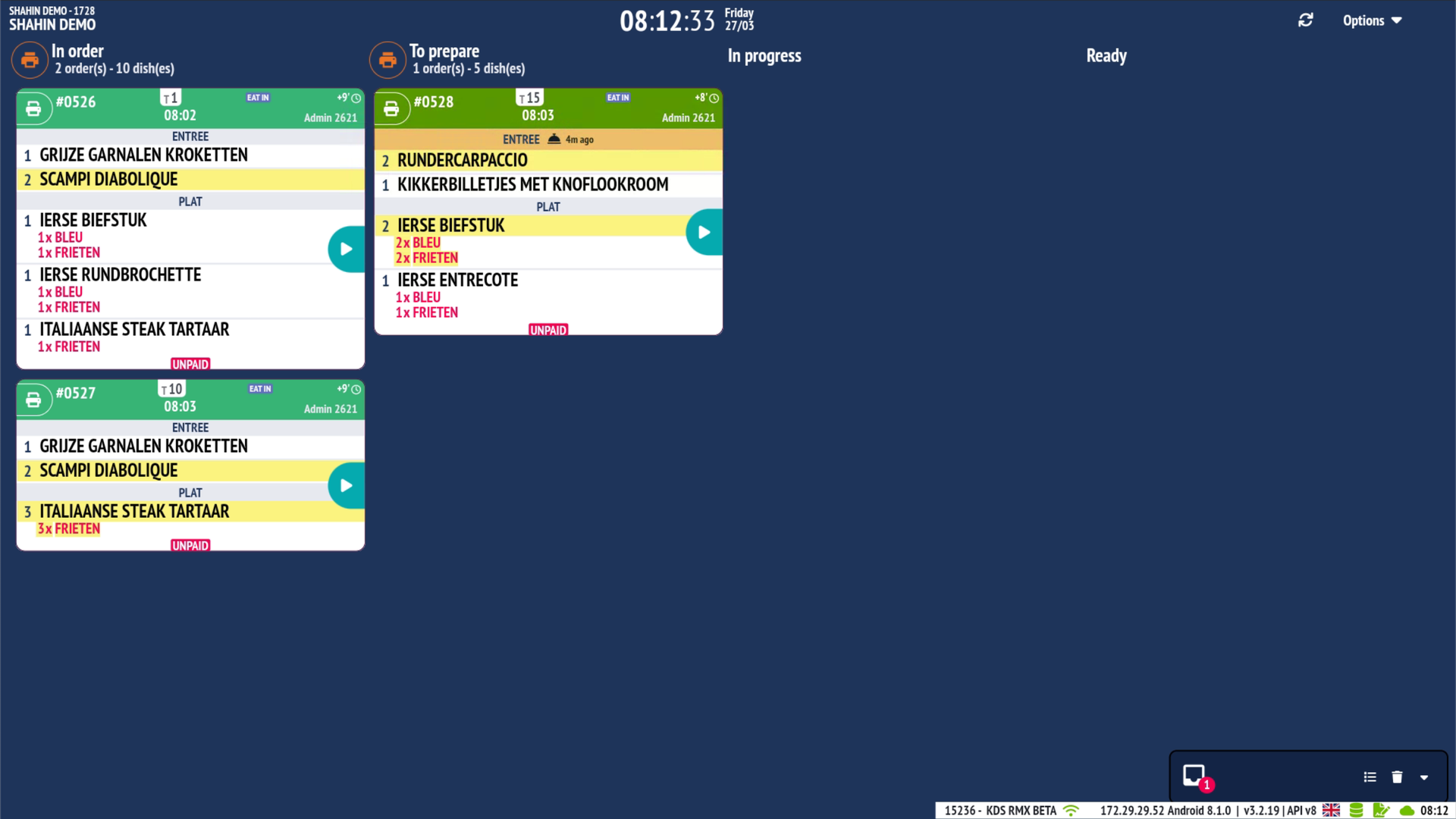
- the corresponding ticket is automatically moved to the top of the list on kitchen screens
- a visual animation (bell icon) highlights the priority
- a sound notification is triggered
This ensures that customer follow-ups are prioritized instantly.
Benefits
- Service continuity even without Internet
- Improved performance of kitchen screens
- Sound alerts for important events
- Automatic prioritization of urgent orders
- Automatic synchronization after reconnection
Enhanced Stock Management from the POS
RESTOMAX version 3.2.20 introduces improved stock management directly from the sales interface.
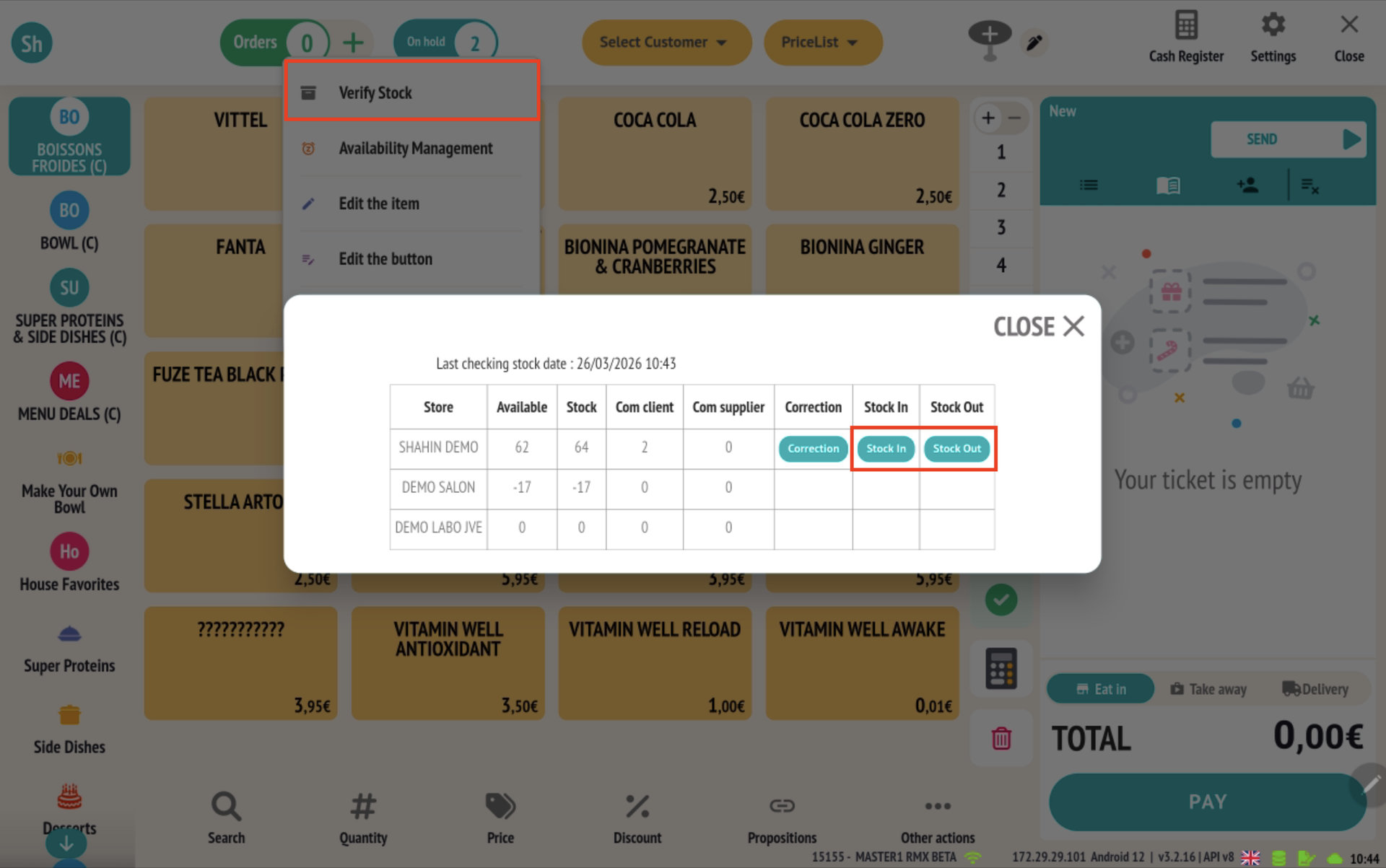
It is now possible to perform stock entries and exits directly from the stock verification grid, accessible via product matrices.
Access to the Feature
- Long press on a product button within a matrix
- Select the “Check stock” action
- The stock adjustment grid opens, displaying stock information for the store
New Available Actions
Two new actions have been added to this grid:
- Stock In: allows recording stock entries (restocking)
- Stock Out: allows recording stock exits (loss, breakage, internal consumption, etc.)
These actions complement the existing button:
- Correction: manual adjustment of stock levels
Displayed Information
The grid now provides several useful data points:
- Store
- Available stock
- Total stock
- Customer orders
- Supplier orders
- Adjustment actions
This gives a quick and complete overview of the stock situation before making any changes.
Benefits
- Stock management directly from the POS
- Time-saving for staff
- Quick adjustments in case of shortages, breakage, or restocking
- Better visibility of actual stock levels
LoyalPay (App2App) Integration and Receipt Printing
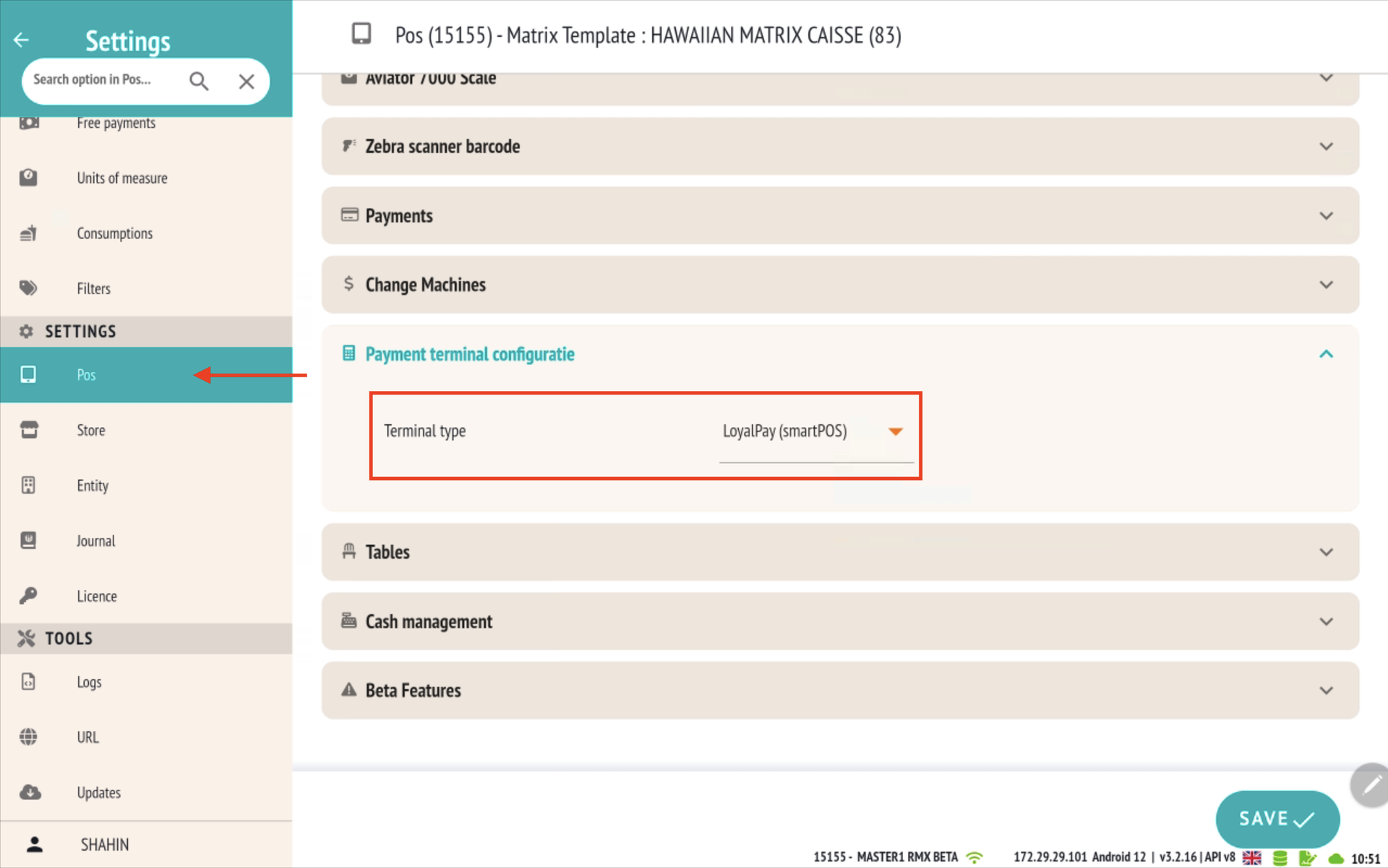
RESTOMAX version 3.2.20 introduces App2App integration with LoyalPay payment terminals, as well as support for printing receipts directly from selected terminal models.
App2App Connection with LoyalPay
RESTOMAX now supports App2App connectivity with LoyalPay, enabling direct communication between the POS and the payment terminal.
How it works
- When a payment is initiated from RESTOMAX, the amount is automatically sent to the LoyalPay terminal
- The customer completes the payment directly on the terminal
- The payment result is automatically transmitted back to the RESTOMAX POS
This integration eliminates manual amount entry and secures the payment process.
Receipt Printing from LoyalPay Terminals
RESTOMAX now supports a new LoyalPay printer type, allowing receipts to be printed directly from certain payment terminals.
Compatible Models
- LoyalPay 9220
- LoyalPay 9310
How it works
- When a bill is validated, the receipt can be printed directly from the LoyalPay terminal
- This allows the use of the terminal’s built-in printer without requiring an external printer
Technical Configuration
- A new printer model has been added in RESTOMAX.
-
It allows:
- recognition of LoyalPay terminals as printing devices
- direct sending of receipts to their built-in printer
Benefits
- Faster and more secure payments thanks to App2App integration
- Reduced hardware requirements thanks to built-in printers
- Smoother payment experience for customers
- Automated communication between POS and terminal
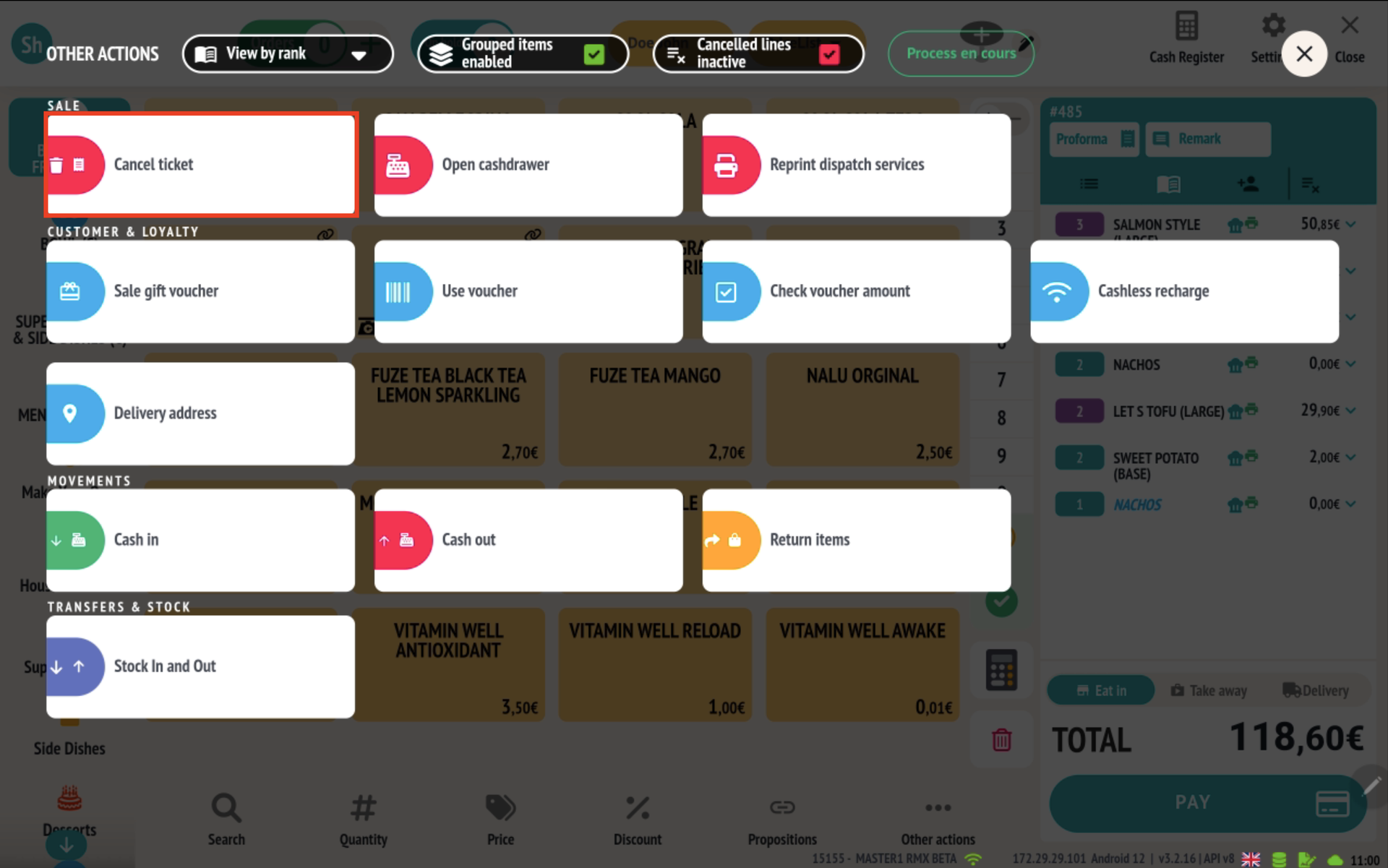
Multi-Ticket Selection in Customer Account Closing
RESTOMAX version 3.2.20 introduces the ability to select one or multiple tickets when closing a customer account, along with improved cancellation management.
How it works
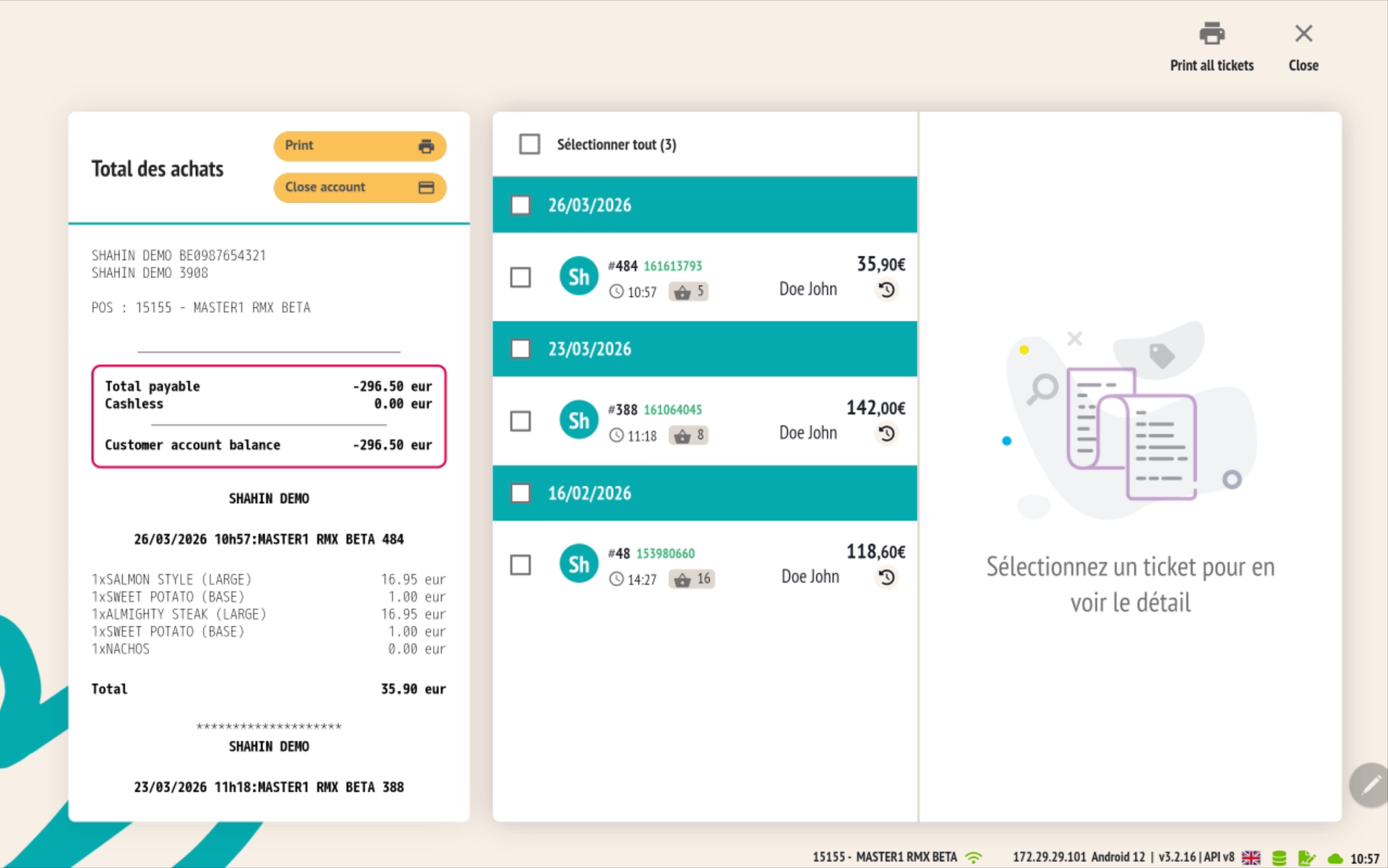
- In the customer account closing screen, a list of associated tickets is displayed.
-
It is now possible to:
- Select one or multiple tickets individually
- Select all tickets in one click
- The total amount to be paid is dynamically calculated based on the selected tickets.
Cancellation of Closing (New)
- It is now possible to cancel an ongoing account closing.
-
When a closing is canceled:
- the associated tickets become available again in the customer account
- they can be selected again for a future closing
Before version 3.2.20:
- Account closing could not be canceled, often requiring complex workarounds in case of error
Objectives
- Provide more flexibility in customer payment management
- Enable partial or full account closing
- Simplify error handling and customer decision changes
Benefits
- Flexible payment: free selection of tickets to settle
- Easier corrections: ability to cancel a closing in case of error
- Better management of customer accounts (B2B, regulars, open tabs)
- Time-saving at checkout
- Clear tracking of remaining balance
Example Use Case
A customer wants to pay only part of their consumption. If a mistake is made during selection, the closing can now be canceled and restarted immediately, without complex handling.
Connected Scale Integration with Smartkiosk
RESTOMAX version 3.2.20 introduces the ability to use a connected scale directly with the Smartkiosk, enabling automated management of weight-based products.
How it works
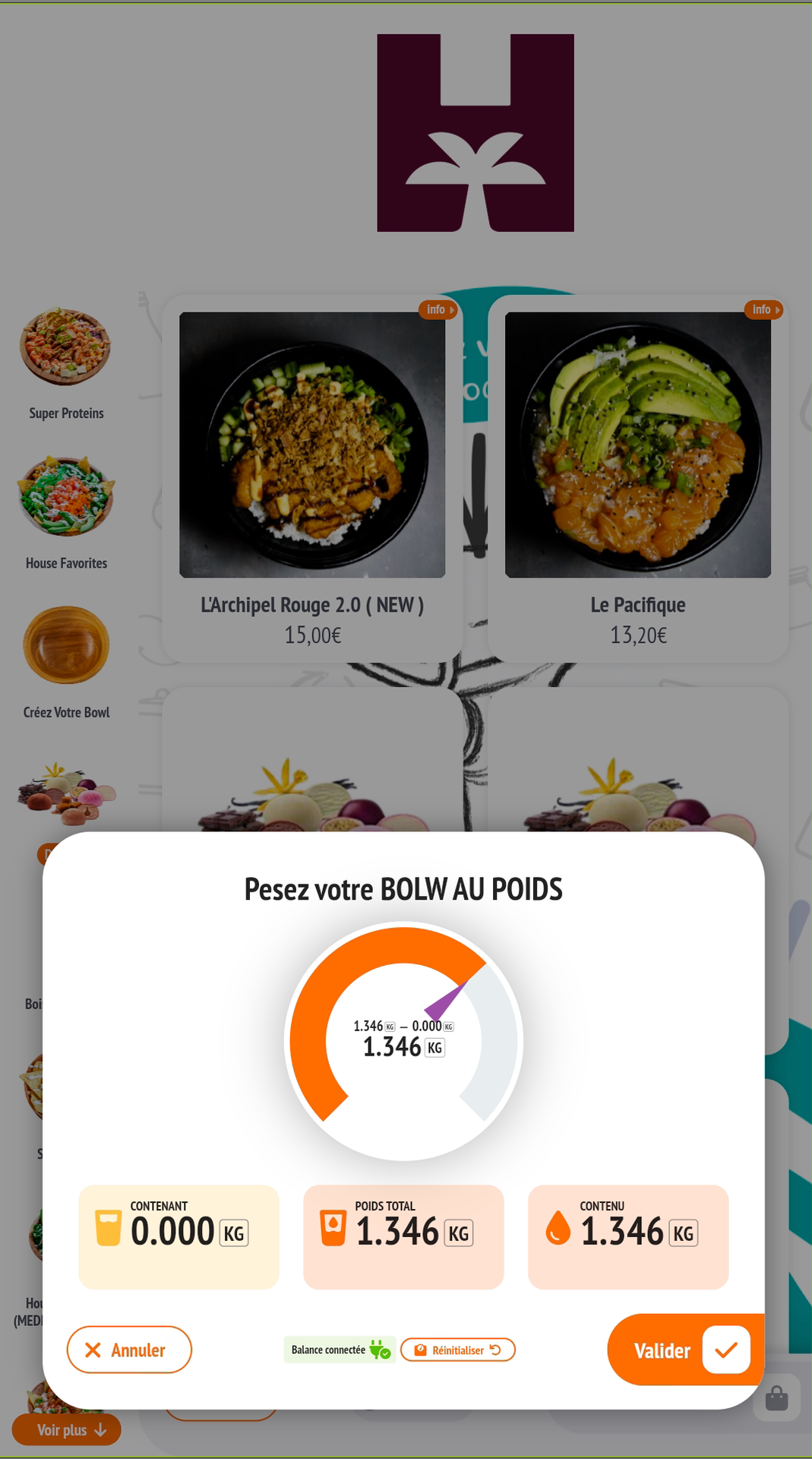
- When a product requiring weighing is selected, a weight popup is automatically displayed
- The weight is retrieved in real time from the connected scale
-
Displayed information includes:
- Total weight
- Container weight
- Net weight
- Once validated, the product is automatically added to the cart with the correct price.
Manual Input Restriction
- On Smartkiosks only, manual weight input is disabled.
-
The weight must come exclusively from the connected scale, ensuring:
- maximum accuracy
- no errors or fraud
Use Case: Self-Service Grocery
This feature is particularly suited for grocery stores and bulk retail:
- The customer selects a product (fruits, vegetables, bulk goods, etc.)
- Places it on the connected scale
- The weight is automatically detected and displayed
- The price is calculated in real time and added to the cart
No staff intervention is required
Objectives
- Automate the management of weight-based products in self-service
- Ensure reliable weighing
- Provide a smooth and intuitive kiosk experience
Benefits
- Accurate pricing based on real weight
- Suitable for retail / grocery / bulk sales
- Optimized self-service experience
- Increased security (no manual input possible)
- Reduced billing errors
Other Possible Use Cases
- Salad bars / poke bowls
- Pay-by-weight buffets
- Cafeterias / canteens
- Hybrid food + retail concepts
Partial Payment on Smartkiosk (Multi-Payment Methods)
RESTOMAX version 3.2.20 introduces the ability to perform partial payments directly on the Smartkiosk, combining multiple payment methods.
How it works
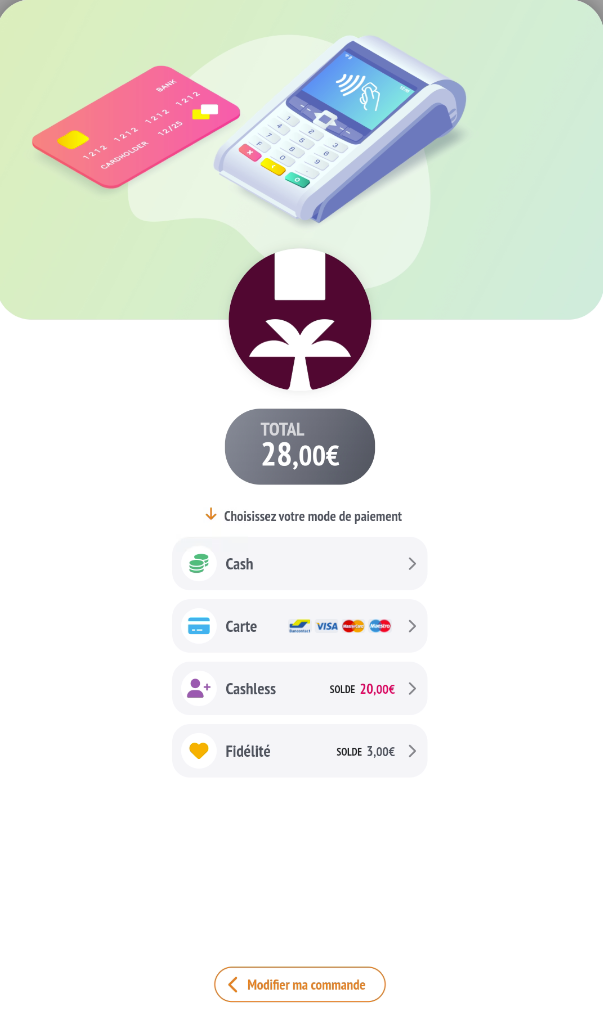
- The customer selects a first payment method (cashless, loyalty, card, etc.)
- Part of the total amount is automatically deducted based on available balance or payment made
-
The kiosk then displays:
- total order amount
- remaining balance
- The customer can then complete the payment using another method until the total is reached.
Supported Payment Methods
Partial payment is available with:
- Cashless
- Payment terminals (bank cards, meal vouchers, etc.)
- Loyalty
These methods can be freely combined within a single transaction.
Objectives
- Provide maximum flexibility to customers during payment
- Enable the use of partial balances (cashless or loyalty)
- Adapt kiosks to modern mixed-payment usage
Benefits
- Improved customer experience: flexible and seamless payment
- Increased usage of loyalty programs
- Full utilization of available balances (even partial)
- Faster checkout / kiosk flow
Examples
- A customer pays partly with their cashless balance, then completes with a card
- Use of meal vouchers + card payment
- Partial payment via loyalty, then remaining balance via cash or card